See what needs doing
Organize tasks by status. Assignees, priorities and due dates help everyone see what comes next.
For freelancers & small teams
Your client has feedback. You have the next version. Keep tasks, files and conversations together in projektraum. Clients join through their invitation link.
DocumentationOne project space is free. Invited clients do not need an account.
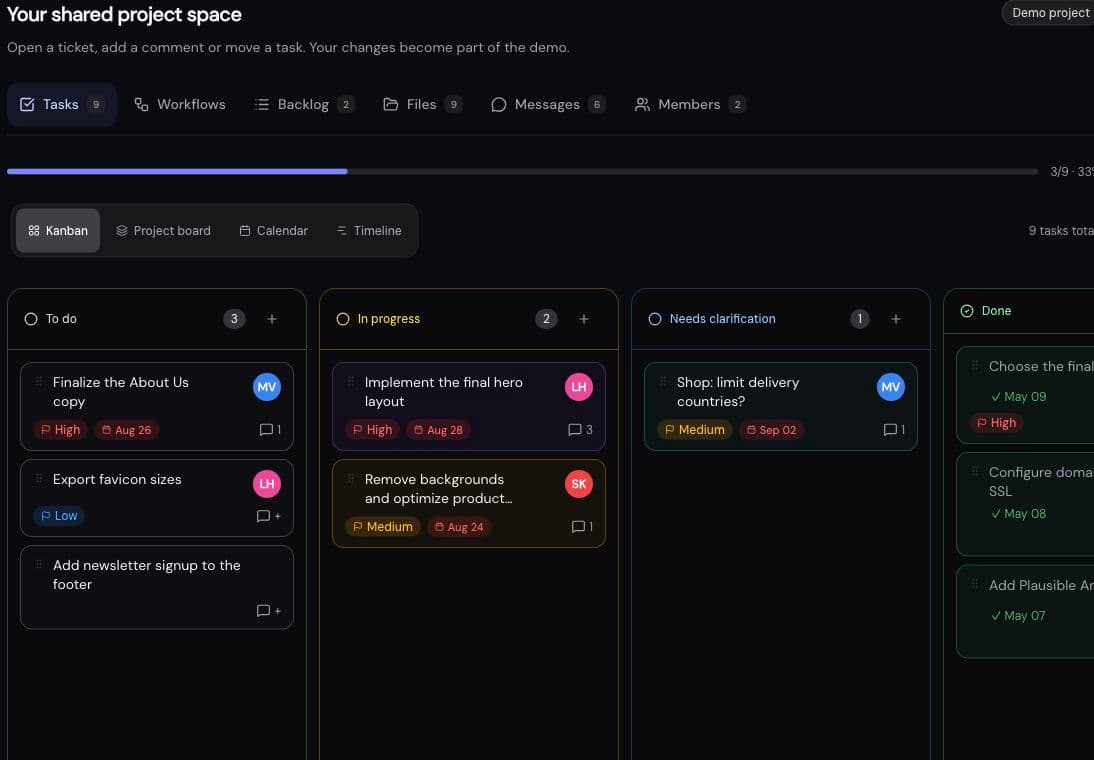
What needs doing? Who’s working on it? See it on the board.
What's inside
Feedback stays on the task, with the file beside it. Pick up where your last conversation left off.
Organize tasks by status. Assignees, priorities and due dates help everyone see what comes next.
Your client opens their personal invitation link. They do not need to create an account.
Upload the next draft as a new version. The latest file and earlier versions stay together.
Discuss changes where the work happens. Use @ to mention the person you need an answer from.
Use the project chat for conversations that cover several tasks. The discussion stays with the client project.
Connect your AI agent when you want to. It can read and update tasks and record results in the project.
How it works
A project space brings one client’s work together. Boards help you organize its tasks.
Name your client project and add the first tasks to a board.
Your client opens their personal link and can give feedback right away.
Upload a draft, discuss questions on the task and keep its status up to date.
For the handoffs in your project
A client request becomes a task. A draft is ready for approval. Use the workflows you need, on their own or together.
Walk through a client projectTry the steps yourself in the sample project. Changes stay in the demo; AI work is only illustrated.
Collect the details in a request form. Review what’s needed and turn it into a task.
The original request stays connected to the task.
Choose who gets new tasks or who is notified when a status changes.
A board rule handles that recurring step.
Authorize a specific job. Your connected, running agent picks it up and records the result in the project.
See whether the job is waiting, running or needs help.
Request approval on the task. Your client accepts it or explains what needs changing.
The decision stays with the work it refers to.
Create a weekly report with open and completed tasks and pending approvals. You choose whether your client can see it.
See what’s finished and what still needs attention.
AI for your project work
Connect your own agent, such as Claude or Codex, to projektraum through MCP. It can read tasks and feedback and add its results to the project. You give it a job; the agent runs in its own environment.
Your AI. Your instructions. Your project space.
An example of what you could ask
“Read the homepage feedback. Add the requested changes to the task and leave a short comment about the next step.”
Create an AI integration in Settings and add its key to your MCP client.
Have it manage tickets or work on tasks in its own environment.
Comments and changes appear under your account and the integration’s name.
Choose the project and allow read-only or read and write access. Every key expires and can be revoked at any time.
Feature Spotlight
Attach a draft to its task or add it to the project. When you upload a new version, earlier versions stay available.
Try the demowebsite-design.pdf
Current version
Previous versions
Pricing
One portal is free. Forever. Only upgrade when you need more.
$0
Forever
€19/month
Cancel anytime
No. Every invited person gets a unique link via email and can use the portal right away. No registration, no password. The only account that exists is yours.
If you upload a file with the same name, we ask: is this a new version? If yes, it's automatically numbered, older versions are kept. No more filenames like "logo_final_v4_FINAL_new.pdf".
Yes. Every task has priority, due date, assignee, and comments with @mentions. Participants get automatic notifications — with settings for "mentions only", "all activity" or "no emails".
Both. You get a dashboard with all your projects. Your client or team gets a link to exactly one project — with access to tasks, files and chat. You all work on the same board.
File access is restricted to the authorized project. Invitation links are randomly generated and checked when used. If you connect an AI client, it can retrieve content within its permitted scope; your chosen AI provider’s data processing terms also apply.
Yes. Create a project-specific key under Settings → AI integrations and connect a compatible MCP client, such as Claude or Codex. Your agent can read tickets and comments and check mentions of your account. With write access, it can create tickets, extend descriptions, reply and complete tasks. This integration does not yet support ChatGPT browser connections that require OAuth.
The agent runs on your computer or in its own environment. Give it tasks there and configure any recurring checks or automated workflows there too. projektraum provides tickets and receives results. The connection alone does not start agent runs.
Each key is limited to one project. Choose read-only or additional write access and revoke the key at any time. Retrieved content is shared with your connected client and, where applicable, its AI provider. Changes are recorded under your account and the integration’s name.
Start with a free project space and invite your client.